

If you don’t understand Stateless vs Stateful, you don’t understand Flutter.
Everything in Flutter is a widget — your text, your button, your layout box, even empty padding. But widgets are not all equal. The single most important distinction in Flutter, the one that appears in every beginner interview and underlies every UI decision you’ll make, is this: does this widget need to change after it’s built? The answer determines whether you use a StatelessWidget or a StatefulWidget — and getting it wrong leads to bugs, unnecessary rebuilds, and code that’s hard to reason about.
This article explains the difference visually, walks through the full StatefulWidget lifecycle, and gives you clean answers to the six interview questions every entry-level Flutter developer gets asked.
Table of Contents
1. What Is “State”?
Before comparing the two widget types, you need a precise definition. State is any data that can change during the lifetime of a widget — a counter value, whether a checkbox is ticked, text typed into a field, or whether a dropdown is open. When state changes, Flutter knows it needs to repaint that part of the screen.
The clearest mental model:
| Analogy | Widget type | Why |
|---|---|---|
| 🖼️ A printed photo | StatelessWidget | Designed once, never changes after printing |
| 📺 A live TV screen | StatefulWidget | Updates its display in real time based on what’s happening |
2. StatelessWidget — The Immutable Widget
A StatelessWidget is immutable. Once built, its properties are final and cannot change from within. It will only rebuild if its parent widget changes and passes it new data. There is no internal memory between renders.
| Characteristic | Detail |
|---|---|
| Core method | Overrides build() — describes the UI |
| Internal data that changes | None |
| Performance | Lightweight — Flutter doesn’t need to track any changing state |
| Rebuild trigger | Only when parent rebuilds and passes new props |
| Built-in examples | Text, Icon, Image, Container with fixed content |
Here’s the minimal, correct pattern:
class GreetingCard extends StatelessWidget {
  final String name; // ← final: can never be changed inside this widget

  const GreetingCard({super.key, required this.name});

  @override
  Widget build(BuildContext context) {
    // This method produces the same output for the same input, every time.
    // That property is called idempotency — it's what makes Stateless safe to
    // rebuild freely without side effects.
    return Text('Hello, $name! 👋');
  }
}
Notice name is final. It’s passed in from the parent and never touched again. The build() method always produces the same output for the same input — this predictability is what makes stateless widgets fast and easy to test.
3. StatefulWidget — The Widget That Can Change
A StatefulWidget can change its appearance over time in response to user actions, animations, timers, or incoming data. To do this, it uses a companion State class that holds the mutable data separately from the widget’s own class.
All Flutter widgets are immutable — that’s a hard rule of the framework. So mutable data cannot live on the widget itself. Flutter’s solution is to split responsibilities: the widget class holds configuration (immutable), and the State class holds data that can change. Flutter can then re-create the widget class freely without losing your state.
| Characteristic | Detail |
|---|---|
| Core method on widget | createState() — returns the companion State object |
| Core method on State | build() — describes the UI using current state data |
| Rebuild trigger | Calling setState() inside the State class |
| Classes needed | 2 — the widget class + the State class |
| Built-in examples | Checkbox, TextField, Slider, Form |
Here’s the minimal, correctly structured example — every line has a purpose:
// The widget class — immutable, just holds configuration
class CounterWidget extends StatefulWidget {
  const CounterWidget({super.key});

  @override
  State<CounterWidget> createState() => _CounterWidgetState();
}

// The State class — holds mutable data and the build method
class _CounterWidgetState extends State<CounterWidget> {
  int _count = 0; // ← this is the "state": data that can change

  void _increment() {
    setState(() {
      // Everything inside setState() is run, then Flutter schedules
      // a rebuild. The build() method runs again with _count's new value.
      _count++;
    });
  }

  @override
  Widget build(BuildContext context) {
    return Column(
      mainAxisAlignment: MainAxisAlignment.center,
      children: [
        Text(
          'Count: $_count',
          style: const TextStyle(fontSize: 32, fontWeight: FontWeight.bold),
        ),
        const SizedBox(height: 16),
        ElevatedButton(
          onPressed: _increment,
          child: const Text('Tap Me'),
        ),
      ],
    );
  }
}
Every time the button is tapped: _increment() fires → setState() runs → _count is updated → build() runs again → the screen shows the new number. This cycle is the heartbeat of every interactive Flutter UI.
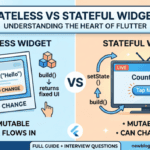
4. Visual: How the Two Structures Compare
┌─────────────────────────────────────────┐
│           STATELESS WIDGET              │
│                                         │
│  StatelessWidget                        │
│       └── build(BuildContext)           │
│             └── returns Widget tree     │
│                                         │
│  Data flows IN from parent (immutable)  │
│  No memory. No internal change.         │
│  Same input → always same output.       │
└─────────────────────────────────────────┘

┌─────────────────────────────────────────┐
│           STATEFUL WIDGET               │
│                                         │
│  StatefulWidget                         │
│       └── createState()                 │
│                 │                       │
│                 ▼                       │
│           State Object                  │
│             ├── mutable variables       │
│             ├── initState()             │
│             ├── setState()  ──────┐     │
│             ├── build()     ◄─────┘     │
│             └── dispose()               │
│                                         │
│  User acts → setState() → rebuild       │
└─────────────────────────────────────────┘
5. The StatefulWidget Lifecycle (In Full)
The State object goes through a defined sequence of lifecycle methods. Understanding this sequence is critical for initializing data correctly, avoiding memory leaks, and knowing when Flutter is about to rebuild your widget.
createState()
      │
      ▼
initState()             ← Called ONCE on creation. Initialize controllers,
      │                   fetch data, start subscriptions here.
      ▼
didChangeDependencies() ← Called after initState and when an InheritedWidget
      │                   dependency changes (e.g. Theme, MediaQuery).
      ▼
build()                 ← Renders the UI. Called every time setState() fires.
      │                   Keep this method fast — no heavy work here.
      │
      │   ┌─────────────────────────────┐
      │   │  User interacts / data changes │
      │   └──────────────┬──────────────┘
      │                  ▼
      │           setState()
      │                  │
      └──────────────────┘  (build() runs again)
      │
      ▼
didUpdateWidget()       ← Called when the parent rebuilds and passes new
      │                   configuration to this widget.
      ▼
deactivate()            ← Widget removed from tree temporarily
      │                   (e.g. navigating away).
      ▼
dispose()               ← FINAL cleanup. Dispose controllers, cancel timers,
close streams. Forgetting this causes memory leaks.| Lifecycle method | Called when | Typical use |
|---|---|---|
initState() |
Once, when State object is created | Initialize TextEditingController, fetch data, start animations |
didChangeDependencies() |
After initState and when inherited deps change |
Access Theme.of(context) or MediaQuery.of(context) safely |
build() |
On first render and every setState() call |
Describe the UI — keep it pure and fast, no side effects |
didUpdateWidget() |
Parent rebuilds with new config | React to changed props from parent (compare oldWidget to widget) |
deactivate() |
Widget removed from tree temporarily | Rarely overridden directly by beginners |
dispose() |
Widget permanently removed from tree | Always dispose controllers, subscriptions, timers here |
Here’s what proper initState and dispose usage looks like in a real screen:
class ProfileScreen extends StatefulWidget {
  const ProfileScreen({super.key});

  @override
  State<ProfileScreen> createState() => _ProfileScreenState();
}

class _ProfileScreenState extends State<ProfileScreen> {
  late TextEditingController _nameController;
  late AnimationController _fadeController;

  @override
  void initState() {
    super.initState(); // Always call super first
    // ✅ Initialize here — context is not yet available, keep it simple
    _nameController = TextEditingController(text: 'John');
    _fadeController = AnimationController(
      vsync: this,
      duration: const Duration(milliseconds: 300),
    );
  }

  @override
  void dispose() {
    // ✅ Always clean up — forgetting this is the #1 cause of memory leaks
    _nameController.dispose();
    _fadeController.dispose();
    super.dispose(); // Always call super last
  }

  @override
  Widget build(BuildContext context) {
    return Scaffold(
      body: TextField(controller: _nameController),
    );
  }
}
6. Side-by-Side Comparison
| Feature | StatelessWidget | StatefulWidget |
|---|---|---|
| Can change over time? | ❌ No | ✅ Yes |
| Core method | build() |
createState() + build() |
| Classes needed | 1 | 2 — widget + State |
| Rebuild trigger | Parent rebuild only | setState() or parent rebuild |
| Performance overhead | Lower — no state tracking | Slightly higher — framework manages State object |
| Lifecycle hooks | ❌ None | ✅ initState, dispose, didUpdateWidget |
| Best for | Text, icons, layout containers, static cards | Forms, counters, toggles, animations, async data |
| Data mutability | All fields are final |
State class can have mutable (non-final) fields |
7. When to Use Which
The cleanest rule: start with Stateless, upgrade to Stateful only when needed. Using a StatefulWidget when you don’t need it is wasteful. Trying to use a StatelessWidget when you need state is a runtime logic error.
| Situation | Widget choice | Reason |
|---|---|---|
| Displaying a user’s name from a profile object | ✅ Stateless | Data is passed in and doesn’t change inside the widget |
Building a Row / Column layout structure |
✅ Stateless | Pure layout — no data changes inside it |
| A card showing a fixed product title and price | ✅ Stateless | Content comes from outside, never changes inside |
| A text field the user can type into | ✅ Stateful | Needs a TextEditingController and lifecycle management |
| A checkbox or toggle switch | ✅ Stateful | Checked/unchecked state lives inside the widget |
| A screen that loads API data on open | ✅ Stateful | Needs initState to trigger the fetch and setState to update UI |
| An animation that plays when the widget appears | ✅ Stateful | Needs an AnimationController with proper dispose() |
8. Top 6 Beginner Interview Questions (With Answers)
These are the questions that appear most consistently in entry-level Flutter interviews. Knowing these cold will make you stand out.
Q1: What is the difference between StatelessWidget and StatefulWidget?
StatelessWidget is immutable — its properties are set once and it never changes after being built. A StatefulWidget maintains a companion State object that can hold mutable data and trigger a UI rebuild by calling setState() whenever that data changes.
Q2: What does setState() do exactly?
build(), which re-renders the widget with the updated data. Without calling setState(), your variables can change but the UI won’t update.
Q3: Why does a StatefulWidget need two classes?
Q4: What is initState() used for?
build(). It’s the correct place to initialize TextEditingControllers, start animations, subscribe to streams, or trigger a one-time data fetch. It runs too early to safely call context-dependent APIs — use didChangeDependencies() for those.
Q5: What happens if you forget to call dispose()?
TextEditingController, AnimationController, and stream subscriptions won’t be released when the widget is removed from the tree. This causes memory leaks — those objects keep consuming memory and CPU even after the screen they belonged to is long gone. In a large app, this compounds over time and degrades performance.
Q6: Can a StatelessWidget be a child of a StatefulWidget?
setState() calls. It passes the current values down to stateless child widgets that simply display them. This keeps logic centralized and child widgets lightweight and easy to test.
Ready to Apply This?
The best way to cement these concepts is to build something real. Our two-part series puts exactly this knowledge to work — Part 1 uses both widget types to build a notes app UI, and Part 2 adds persistence with proper lifecycle management:
| Article | What you’ll practice |
|---|---|
| Notes App Part 1: Project Setup & Core UI | Building with both widget types, navigation, setState in practice |
| Notes App Part 2: Local Persistence & Polish | initState for loading data, dispose for cleanup, async patterns |

Pingback: Hot Reload vs Hot Restart in Flutter (With When to Use Which)
Pingback: Flutter Tic-Tac-Toe Part 3: Single-Player AI with Minimax Algorithm
Pingback: Flutter FutureBuilder Explained: Loading Data from an API (Beginner Tutorial)
Pingback: Flutter Local Storage: SharedPreferences vs Hive vs sqflite — Which to Use?
Pingback: Flutter SharedPreferences Tutorial: Save User Data Without a Database
Pingback: Flutter Search Bar from Scratch: Real-Time Filtering ListView
Pingback: Bottom Navigation Bar in Flutter: 3-Screen App for Beginners
Pingback: Flutter Dark Mode in 10 Minutes: Light/Dark Theme Toggle for Beginners
Pingback: Using ListView.builder in Flutter: The Right Way to Build Lists
Pingback: Build a Flutter Tic-Tac-Toe Game from Scratch (Beginner Tutorial)
Pingback: Flutter Riverpod for Beginners: Ditch setState and Never Look Back